Almost every business has a password problem, even if nobody talks about it. The shared login for the vendor portal lives in a spreadsheet. The office manager keeps a notebook in her desk drawer. Half the team uses some variation of the same password for everything, because remembering dozens of unique ones is impossible.
None of this comes from carelessness. It comes from people trying to get work done with too many accounts and no good system. But it gives attackers one of the easiest ways into your business, and in this post we’ll show you a better approach.
Why is reusing passwords dangerous?
Reusing passwords is dangerous because when any one website is breached, attackers try those same email and password combinations on other services, including business email, banking, and cloud apps. This is called credential stuffing, and it’s almost entirely automated.
Here’s how it plays out. An employee signed up for a shopping site years ago using their work email and their usual password. That site gets breached. The list of stolen logins is sold or posted online. Attackers feed it into software that tries each combination against Microsoft 365, Google Workspace, banking portals, and other common services. If the password was reused, the attacker logs in as your employee, and nothing looks unusual at first.
Once inside an email account, an attacker can read conversations, send convincing messages to your clients and vendors, and request password resets for other accounts.
Only 1 in 4 People use strong, unique passwords
The other 74% repeat, simplify, or skip password management entirely.

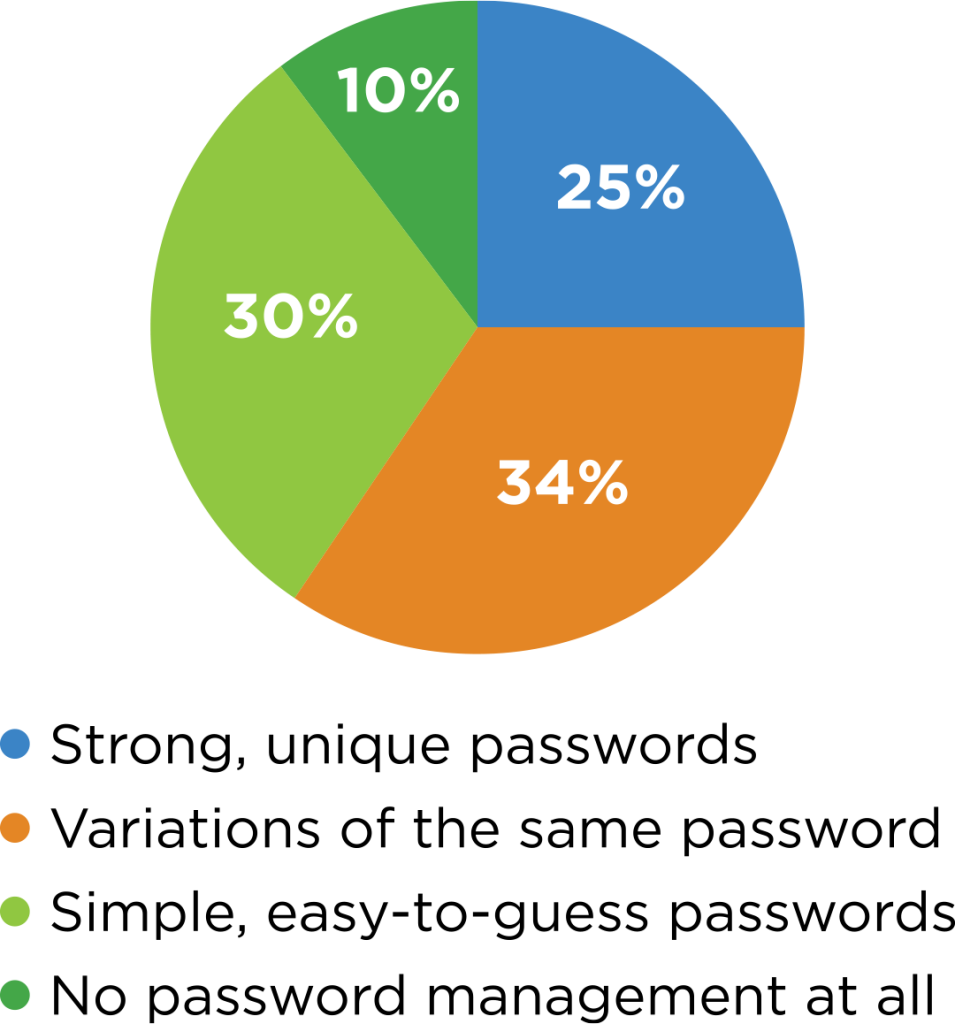
Survey of 8,000+ people in the US, UK, France, and Germany.
Keeper Security Password Management Report · 8,000+ respondents
Variations of the same password are the most common habit, and attackers’ tools try the obvious tweaks automatically. Source: Keeper Security Password Management Report.
What makes a password strong?
A strong password is long, unique to a single account, and hard to guess. Length matters more than complexity: a long passphrase of several random words is both stronger and easier to type than a short string of symbols.
A few rules of thumb:
- Use at least 14 to 16 characters. Longer is better.
- Never reuse a password. Every account gets its own.
- Avoid personal details. Kids’ names, pets, birthdays, and your company name are easy to guess or find online.
- Skip predictable patterns. Adding “1!” to the end or swapping “a” for “@” doesn’t fool modern cracking tools.
The catch is obvious: nobody can remember dozens of long, unique passwords. That’s exactly the problem a password manager solves.
What is a business password manager?
A business password manager is a secure, encrypted vault that creates, stores, and fills in passwords for each employee. Your team remembers one strong master password, and the manager handles the rest.
The business password management we deploy for clients gives you:
- Strong password generation. Unique, long passwords are created automatically for every account.
- Autofill across devices. Passwords fill in on computers and phones, so strong passwords don’t slow anyone down.
- Secure sharing. Shared logins (like a vendor portal or social media account) can be shared with the right people without being emailed, texted, or written down.
- Admin visibility. Leadership can see whether employees are using weak or reused passwords and fix problems before they’re exploited.
- Breach alerts. The system can flag when a saved credential shows up in a known breach, so it can be changed right away.
Because the vault is encrypted, the passwords inside stay protected even from the service storing them.
Is it safe to keep all your passwords in one place?
Yes, a reputable password manager is far safer than the alternatives most businesses use today. Passwords are encrypted before they leave your device, and the vault is protected by a master password plus multi-factor authentication.
Compare that to the status quo: a spreadsheet on a shared drive, a browser that saves passwords with no oversight, or a notebook anyone could pick up. A password manager is a single, well-defended vault instead of dozens of unlocked drawers.
Do you still need multi-factor authentication with a password manager?
Yes. Multi-factor authentication (MFA) adds a second check, like a code from an app or an approval on your phone, so a stolen password alone isn’t enough to log in. A password manager and MFA work best together.
Turn MFA on everywhere it’s available, especially for:
- Email accounts
- Banking and payment platforms
- Your password manager itself
- Remote access tools
- Any admin or owner-level account
Authenticator apps and push approvals are stronger than codes sent by text message, but any MFA is far better than none.
What happens to passwords when an employee leaves?
When an employee leaves, every account they could access needs to be secured, and shared passwords they knew should be changed. Without a password manager, that list is often incomplete because nobody knows every login the person used.
A business password manager makes offboarding cleaner. Admins can see what was shared with the departing employee, remove their access in one place, and rotate shared credentials with confidence that nothing was missed. It also means the business keeps its logins. Accounts don’t disappear when the one person who knew the password walks out the door.
Getting your team started
Rolling out a password manager doesn’t have to be disruptive. The best rollouts follow a simple pattern:
- Start with leadership and admin accounts. Protect the most powerful logins first.
- Move shared credentials in. Get the spreadsheets and sticky notes into the vault.
- Onboard the team in short sessions. A quick walkthrough is usually all people need.
- Turn on MFA everywhere. Including the password manager itself.
- Review the reports. Use the admin dashboard to find and fix weak or reused passwords over time.
Let’s get your passwords out of the spreadsheet
At Absolute, we do IT differently. We set up password management that fits how your team actually works, then support it as part of your IT, so it doesn’t become one more tool nobody uses. If you’re not sure where your business’s passwords live today, let’s find out together.
Call us at 903-807-0303 or reach out via our contact form.
Share this Post
What's New?
Sticky Notes and Spreadsheets Aren’t a Password Strategy

Your Team Is Your First Line of Defense. Train Them Like It.

Your Inbox Is the Front Door. Here’s How to Lock It.

Shadow IT: What It Is, Why It Happens, and How to Manage It